

Wise Care 365 PRO: Windows maintenance, real and alternative advantages
febrero 9, 2026 | by Equipo YKCG

Índice del Articulo
Wise Care 365 PRO: what it does, who it serves, and real boundaries (no smoke)
Wise Care 365 PRO is a maintenance suite for Windows designed for everyday life: waste cleaning, basic optimization and utilities to have the most ordered system. Its real value is not in “doing magic” with performance, but in reducing unnecessary load that accumulates over time: temporary, installation traces, browser trash, programs that sneak at the start and other details that, added, make the PC slower or inconsistent.
In other words: if your computer takes months (or years) of use, installing and uninstalling software, this type of tool can help you maintain a routine. If your Windows is newly installed, or if the problem is hardware (low RAM, old disk, high temperatures), the “benefit” will be minimal.
If you want additional context about these types of tools (and how they are usually used in home maintenance), here's a related article in YKCG:Advanced SystemCare Pro 19 general guide and features.

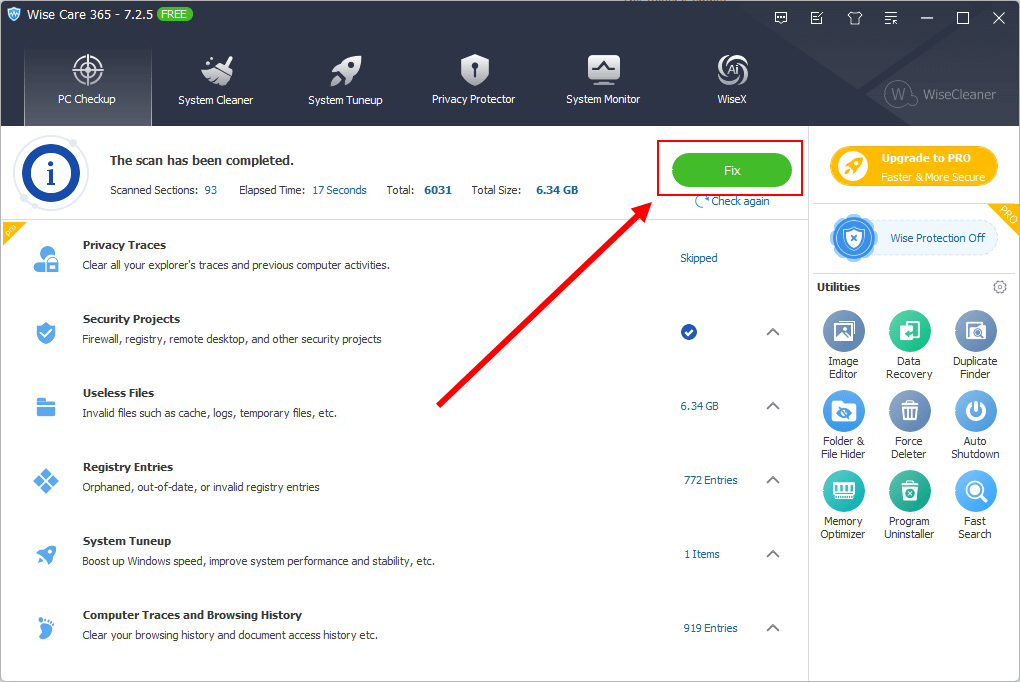
Official reference image: the main panel usually concentrates accesses to cleaning, optimization and utilities. Useful to understand the structure before applying actions.
What is Wise Care 365 PRO?
Wise Care 365 PRO is a Windows utility package that groups several tasks into one interface: temporary file and cache cleaning, application trail management, basic boot optimization and auxiliary modules. The PRO version typically enables complete or automated functions that are limited in free editions.
The important thing is to understand what kind of “optimization” does: it does not modify critical components of Windows in the style of an advanced administrator setting. It works more like maintenance and order. That makes it practical for home users, but it also means that it does not replace diagnosis when there are serious faults.

Who does it really work for?
It works best for home users (Windows 10/11) who want a maintenance routine without getting into advanced tools. It also fits in light office PCs where performance is degraded by “accumulation”: too many programs at the start, constant weather, cache-loaded browsers and deinstallations that leave waste.
It is not the best option if you are in these cases: (1) suspected malware, (2) critical screenings/errors, (3) disk with damaged sectors, (4) off-range temperatures, or (5) a clearly corrupt system. Here what it serves is diagnosis and real repair (SFC/DISM, disk testing, driver review), not “optimization”.
Advantages and disadvantages (not exaggerating)
Advantages
- Clear interface:reduces friction for basic maintenance (clean, check start, common tasks).
- System order:helps to attack typical causes of “accumulated latitude” (temporal + startup).
- Use on demand:If you run it when you need it, it doesn't have to load the system all the time.
Disadvantages
- It doesn't fix structural flaws:Disk, corruption or malware problems require other tools.
- Registration cleaning:the benefit is often debatable and the risk exists if it is used without criteria.
- Little gain on new systems:If your Windows is clean, the difference will be small.
If you are comparing with other suites of the same type to decide with criteria, you can review these alternatives within YKCG (to contrast focus and modules):WinSysClean X11 PROandReg Organizer.
Good practices and common errors when using optimizers
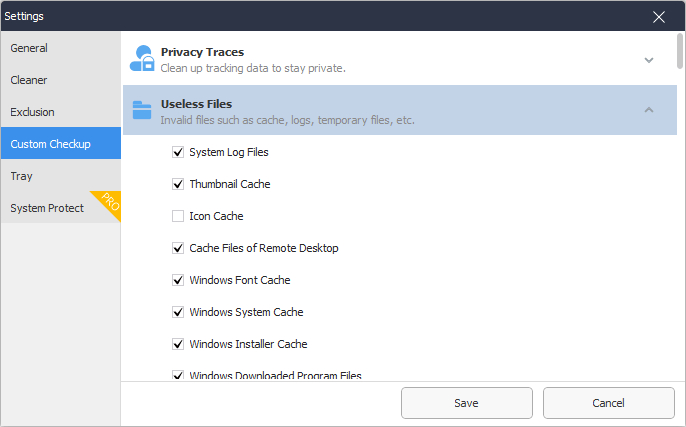
The typical error is to apply “all in one click” without checking what will be touched. If you want results with low risk, the recommended order is simple: first clean up of time and caches, then review start programs, and finally point adjustments (only if you understand the effect).
- Creates a restore pointbefore big changes.
- Avoids registry cleaning as a routineUse it only if you know what you're doing.
- Uninstall what you don't use: tends to yield more than “optimize”.
- Check the storage: An almost full disk slows back to Windows (especially SSD to the limit).
Alternatives (CCleaner, Windows and more “clean” options)
To be fair: many tasks that these programs offer also exist on Windows (starter management, storage cleaning, uninstallation, maintenance tools).Even so, some people prefer suites like Wise or CCleaner for convenience, because they centralize everything on a panel.
| Option | The best | When it's NOT convenient |
|---|---|---|
| Wise Care 365 PRO | Simple suite for cleaning + boot + utilities | If you want advanced technical control or zero “tweaks” |
| CCleaner | Very well known; useful for cleaning and basic tasks (depending on version) | If you don't want extras/promos or modules you won't use |
| BleachBit | More minimalist approach, useful for cleaning/privacy | If you are looking for comprehensive suite with more utilities |
| Windows Tools | Integrated and secure; sufficient for most | If you want to automate maintenance in a single panel |
Free access: conditions and limits
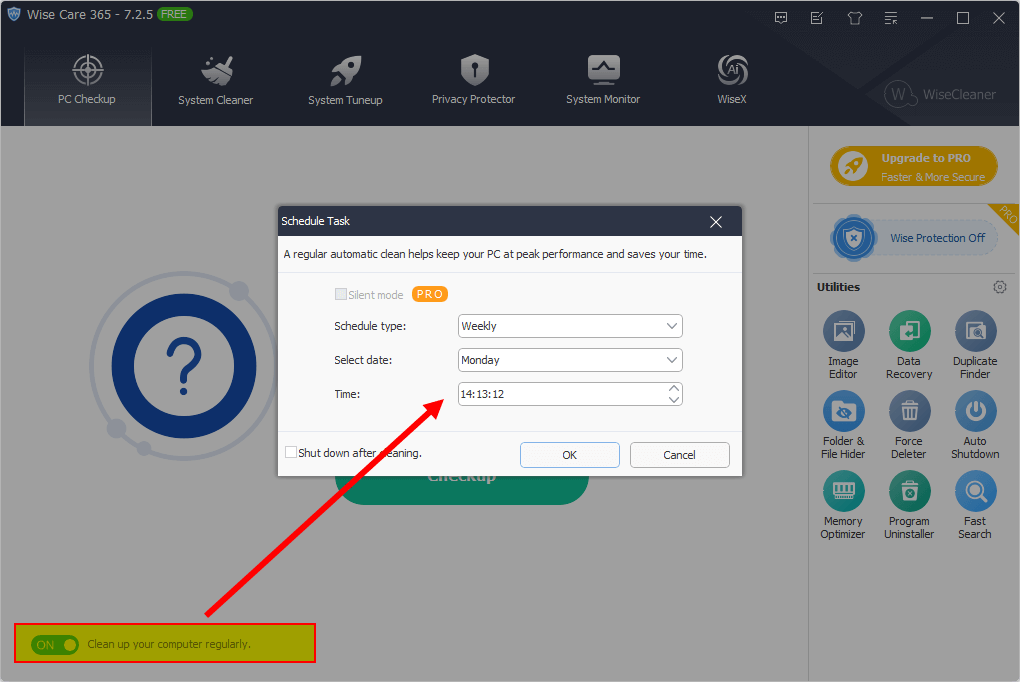
To obtain Wise Care 365 PRO under specific terms.
1. Download and install 2. Automatic activation
Practical recommendation: Before installing, check origin, reputation and signature/hash if available.
Terms and conditions (as indicated)
| Element | Condition |
|---|---|
| Type of licence | Lifetime |
| Valid version | Only Wise Care 365 PROv7.3.4.721 |
| Permissible use | Domestic / personal |
| Support | Does not include free technical support |
| Updates | Does not include free updates |
Useful recommendation: join the YKCG Telegram (promos and notices)
If you want to quickly learn about new publications and active promotions (without relying on networks), you can join the official Telegram group:
Tip: Enable notifications only for “hooks” or “mentions” if you don’t want noise.
FAQ (common questions)
Was Wise Care 365 PRO “necessary” in Windows 11?
No. It may be useful as a maintenance tool if your computer accumulates trash and programs at startup, but Windows also offers built-in alternatives.
Which part should be used more confidently?
Temporal/cache cleaning and boot review are usually the most reasonable. Avoid aggressive tweaks if you don’t understand their impact.
When do you feel more?
In PCs with months of use, loaded browsers, frequent installations and saturated booting. In new systems, the improvement is usually small.
Technical conclusion (short and honest)
Wise Care 365 PRO can be useful as a home maintenance suite if you use it with realistic expectations: sort, clean and reduce unnecessary load. It does not replace diagnosis or repair critical faults. If you prioritize maximum security, native tools from Windows + habits (uninstall what you do not use, keep space free, check boot) are usually enough. If you prioritize comfort, a suite like Wise can save time, always avoiding aggressive mode.
RELATED POSTS
View all


Zip Password Recover: 3 methods "Gross Force Attack"
septiembre 27, 2020 | by Equipo YKCG

EaseUS VideoKit Pro: Lifetime License and Unlimited Updates
noviembre 2, 2023 | by Equipo YKCG

F-Secure SAFE: full protection for your devices
mayo 24, 2024 | by Equipo YKCG