

WinTousb Professional free: create Windows bootable from USB
marzo 8, 2026 | by Equipo YKCG
Índice del Articulo
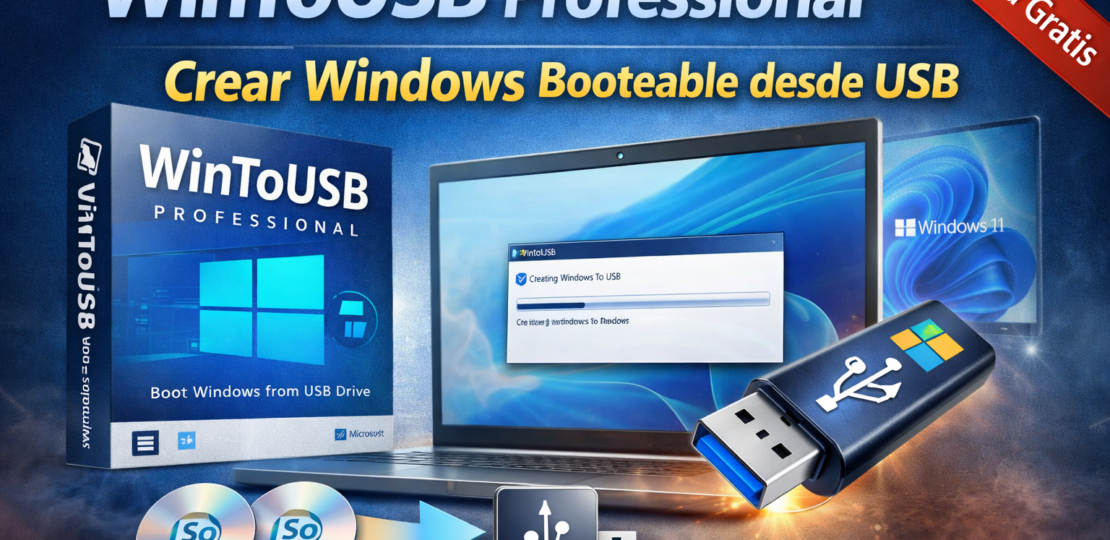
WinToUSB Professional: create a Windows bootable from USB (guide and promotion)
WinToUSB Professional is a tool that allowsinstall and run Windows directly from a USB drive or external diskThis is useful for testing systems, carrying your portable environment or booting Windows on different computers without modifying the main system.
In this guide we explain what the software really does, when it is best to use it, how to create a correctly bootable Windows and what conditions the promotion has available.
Who's it for?
- Users who needGoogle Windows from USB.
- People who want to wear aportable Windows system.
- Technicians who test systems on different equipment.
- Users who want to start Windows from aISO without modifying its main installation.
What WinTousb does and what he doesn’t do
| What He Does | What you shouldn't expect |
|---|---|
| Install Windows on a USB drive or external disk. | It does not accelerate the system if the USB is slow. |
| Create a portable Windows that you can use on different PCs. | It does not replace a complete installation in internal SSD. |
| Install Windows from an ISO or DVD. | It doesn't turn an old USB into a fast one. |
| Allow to test Windows without modifying the main system. | It is not a system optimization tool. |
Editorial rating:WinToUSB is a handy solution for creating portable or test systems. Its performance depends mainly on the speed of the USB device you use.
How to create a Windows bootable with WinToUSB
- Download and install WinTOUSB Professional on your PC.
- Opens the program and selects theISO image of Windows.
- Selects theUSB device or external diskwhere the system will be installed.
- Choose the installation mode (Legacy or VHD according to compatibility).
- Start the process and wait for the installation to finish.
- Once completed, you can boot Windows from that USB on any supported computer.
Council:uses a USB 3.0 or external SSD to get a much better performance when starting Windows.
Recommended device settings
- USB 2.0:only recommended for basic tests.
- USB 3.0 or higher:much more fluid experience.
- External SSD:best option to use Windows laptop with good performance.
- VHD mode:more flexible for migrations or copies.
Recommendation:if you plan to use Windows laptop frequently, consider using an external SSD to get speeds similar to an internal disk.
Expected results
- Create a fully functional Windows system from USB.
- Start the system on different compatible computers.
- Test configurations or software without modifying your main installation.
- Use Windows laptop for technical tasks or recovery.
Important:performance will depend directly on the speed of the USB device used.
Requirements and compatibility
- Windows 7, 8, 10 or 11.
- USB memory or external disk compatible with boot.
- Windows ISO file.
- Enough space to install the operating system.
WinTOUSB Professional Promotion Available
If the promotion is still active, you can activate WinToUSB Professional by following these steps:
- Download and install the program on your computer.
- Open the menuUpdate > Activation.
- Enter the following license code:
Terms of the offer:
- Lifetime license for WinTOUSB Professional 10.5.
- It does not include updates to future versions.
- It cannot be reinstalled once the offer expires.
- License for domestic use only.
- It does not include free technical support.
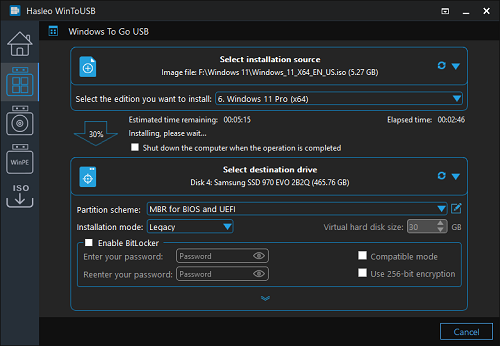
Programme captures
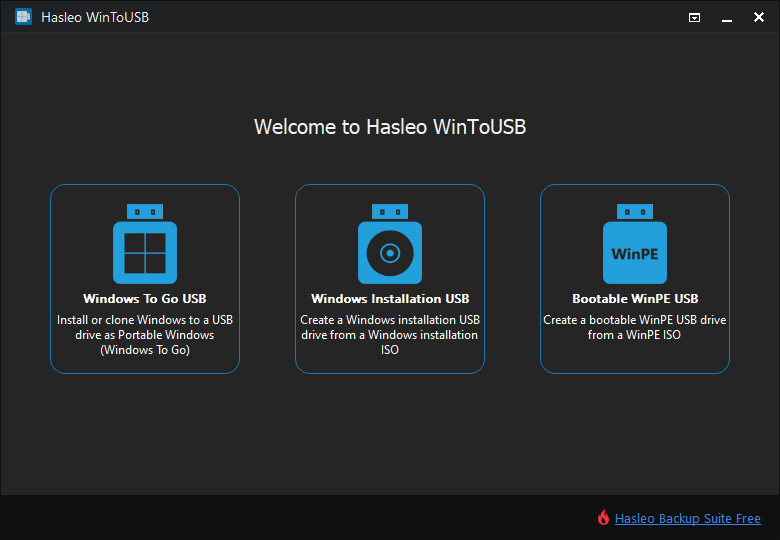
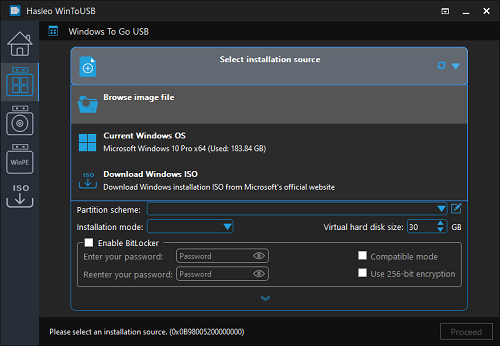
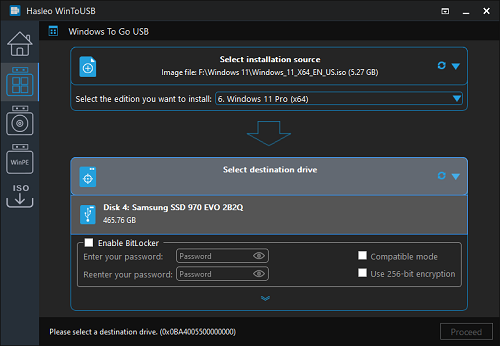
Alternatives
- Rufus:very popular tool to create bootable USB.
- Ventoy:allows multiple ISOs to be used on the same USB.
- Windows Media Creation Tool:Microsoft official tool.
Frequently Asked Questions
Does WinTOUSB allow you to install complete Windows on USB?
Yes, it allows you to create a fully functional Windows system that can boot from a USB drive or external disk.
Does it work with Windows 11?
Yes, you can use compatible ISO images from Windows 11 to create portable systems.
Do I need a Windows ISO?
Yes, the program uses a Windows ISO or DVD as an installation source.
Is it better to use USB or external SSD?
An external SSD usually offers better performance than a traditional USB memory.
Can I use the same USB on several computers?
Yes, as long as the hardware is compatible with system boot.
Recommended articles
Editorial transparency
This article has an informative and editorial purpose. The links provided are shared to facilitate access to the mentioned software.
Promotions can be changed or terminated at any time. Always check the conditions before activating any license.
RELATED POSTS
View all

AnyViewer Professional: Advantages and Key Features
septiembre 24, 2025 | by Equipo YKCG

Exploring Ashampoo Music Studio 2025: Your Companion Ideal for Musical Production
agosto 28, 2025 | by Equipo YKCG
Get a License for Trend Micro Maximum Security
abril 23, 2025 | by Equipo YKCG