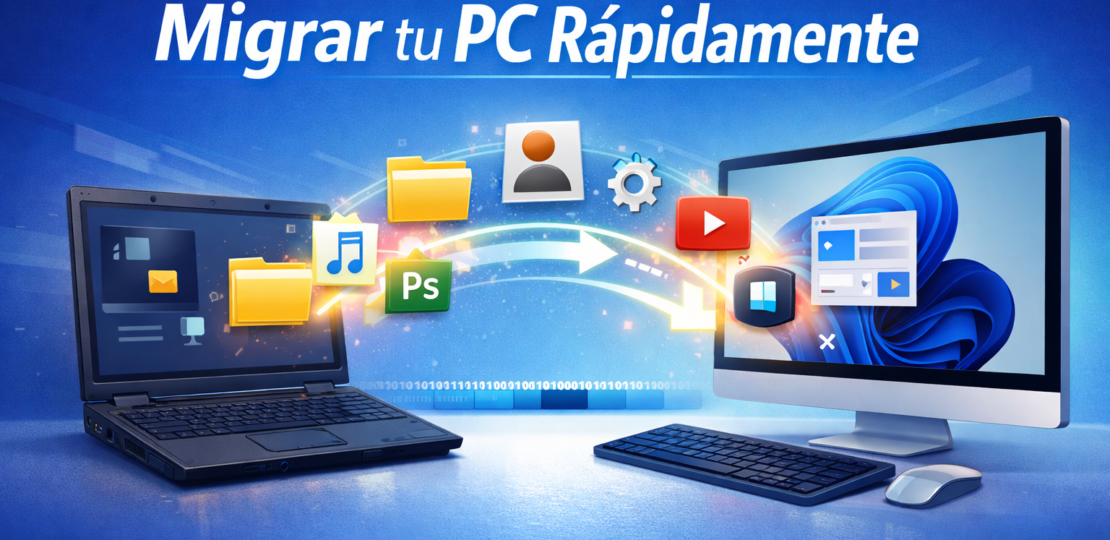
EaseUS All PCTrans Pro: complete guide to migrating your PC without losing data
marzo 1, 2026 | by Equipo YKCG
Índice del Articulo
EaseUS All PCTrans Pro: practical guide and honest review to migrate your PC without pain
EaseUS All PCTrans Pro is a tool designed formigrate files, applications and part of the configurationfrom an old team to a new team, or to create aback-up/restorationprofiles and data. It is useful when you want to save hours of reinstallation and reconfiguration.
Updated:02/03/2026
Who's it for?
- Persons withNew PC/laptopthat they want to take programs and documents without starting from scratch.
- Who needstransfer large filesin an orderly manner (with subsequent verification).
- Users who wantmigrate accounts/profiles(when the system and permissions allow) or dobackupsto restore on the same PC.
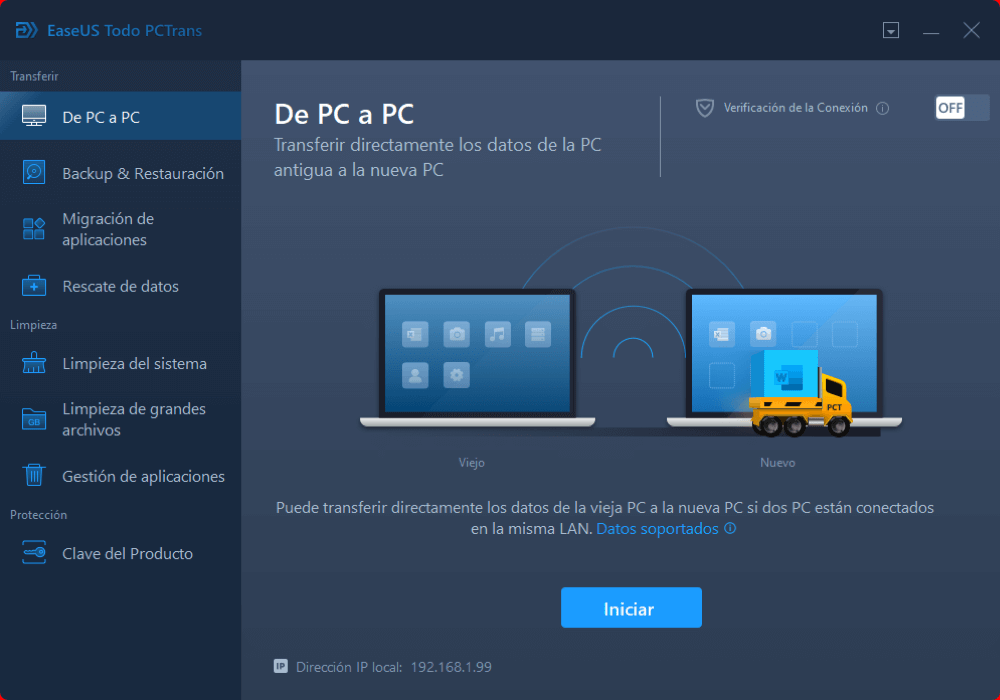
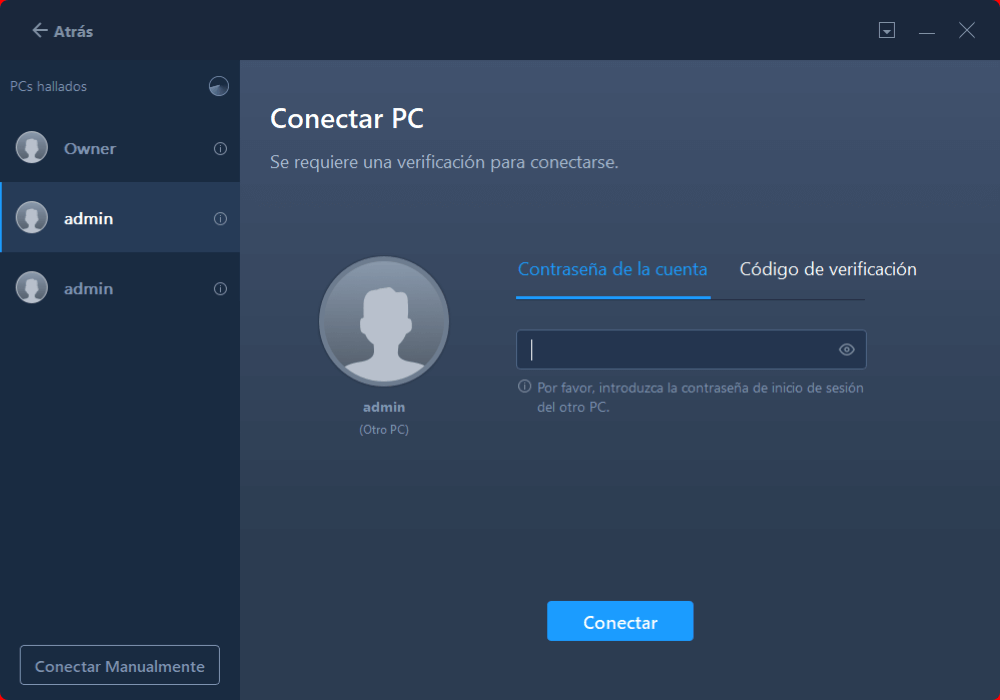
Reference captures
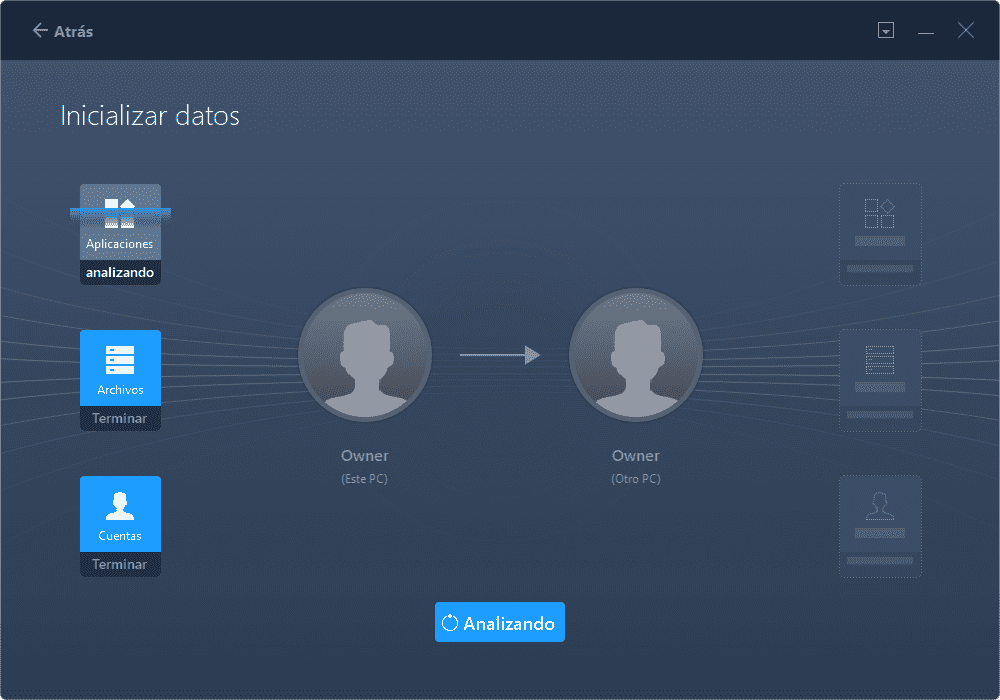
What He Does (And What He DOES NOT)
What does usually do well
- PC to PC transferfiles and, in many cases, common applications (depending on compatibility and permissions).
- Migration of user data: documents, downloads, desktop and usual folders.
- Backup/Restore(back up and restore) to recover data on the same computer or move it to another, depending on the editing/function used.
- Local migration(in some scenarios): move programs/data to another unit/partition to free up space.
Actual limitations (important)
- It's not guaranteed.that third party licenses travel with you (some apps are enabled by hardware/account and will play reactivate/reinstall).
- Do not “repair” Windows or replace acloned diskwhen you need an exact copy of the system.
- In teams with corporate policies (domain, managed BitLocker, MDM), migration may require administrator permissions or may not be feasible.
- If the source or destination has very different configurations (drivers, chipsets, versions), some apps are transferred butthey don't openOr they're unstable.
Official product reference:EaseUS Todo PCTrans page. License terms (EaseUS general):EaseUS License Agreement.
How to use it correctly (clear and safe steps)
Before starting (2 minutes saving hours)
- If they arecritical files, make an additional backup on external disk (rule 3-2-1 if applicable).
- Update Windows and restart both computers.
- Connect both PCs to the same network (preferable cable) or prepare a fast external disk.
- Let's get your hands on it.accounts(Microsoft/Google/Adobe/Steam, etc.) Some apps will request login again.
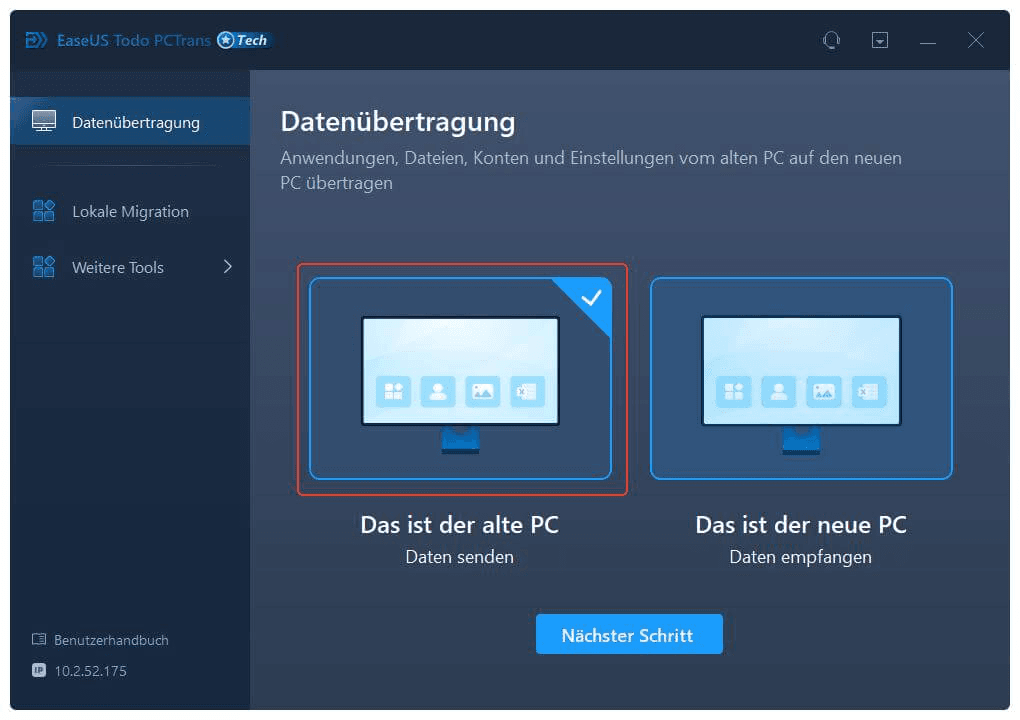
- Choose the mode:“PC to PC” if you have both computers running; “Security and restoration copy” if you go in stages (e.g. with external disk).
- Install and executesoftware on the computer (depending on mode) with administrator permissions when necessary.
- Select which to migrate:Prioritize “Documents/Writer/Downloads”, then essential apps. Avoid “everything” if you’re not sure (better by blocks).
- Starts the transferand do not use heavy applications while running (reduces bugs by blocked files).
- Check:opens 5–10 large files (PDF, photos, projects), checks paths, and checks that key apps open and save.
- Post-migration:Sign in to apps that require it, check printers, VPNs, and network accesses.
Editorial board:if your target is an “exact copy” of the system (identical windows, with boot, partitions and everything), usually more aclonedYou can review this guide:how to clone your hard drive in minutes.
Recommended configuration (by scenarios / hardware)
| Scenario | Recommendation | Why |
|---|---|---|
| PC to PC (same network) | Use Ethernet cable if you can + block migration | More stability and speed; reduces failures by “all at once” |
| Very large files (video, backups, projects) | Best “Backup/Restore” to external SSD disk | Minimizes network cuts and facilitates retrying/verification |
| Old laptop with slow HDD | First cleans/orders data + migrates the essentials | Avoid dragging “garbage” and speed up the process |
| Semi-corporative environment (various accounts, permits) | Creates temporary local user + migrates data, then integrates accounts | Less friction with permissions; reduces policy locks |
Note:If the goal is to “free up space” by moving applications to another unit, check first which programs really support that transfer without breaking (apps with drivers, security suites and service tools are usually the most sensitive).
Expected results (without promising miracles)
- Personal documents and folderscorrectly located on the new team (or on the chosen route).
- Part of the appstransferred and functional, but it is normal for some to ask forreinstallationore-authentication.
- Realistic time: depends on the volume of data and the type of connection. The slowest is almost always the storage (HDD vs SSD) and small files in mass.
- Less frictionthat migrate “by hand”, whenever you select by blocks and verify at the end.
Requirements and compatibility (Windows 10/11, etc.)
- System:Windows (usually compatible with Windows 11/10 and older versions depending on edition).
- Permissions:Advisable to use has administrator permissions for migration of apps/configurations.
- Connectivity:local network (ideal Ethernet) or external storage (recommended SSD).
- Free space:enough in the destination for what you are going to migrate + additional margin (10–20% recommended).
If your priority is theerasing securityin a team that you are going to sell or give away, this is another issue other than migration. Related Guide:Safe deletion of data.
Promotion (license) and download: how to do it safely
Important note:Use these licenses exclusively with the version downloaded from the official website of the manufacturer. These campaigns are usually limited in time, so we recommend you activate them as soon as possible.
Activation codes available:
If you are looking for the official product site, start here:EaseUS All PCTrans (official).
Recommended steps for activation
- Download and install the software from theOfficial sitementioned above.
- Open the program and search for the button"Activate"Or the key icon.
- Copy and paste one of thelicence codesprovided above.
- Check that the activation was successful and enjoy the full version.
Conditions reported for this promotion (according to your information)
- Annual leave forpersonal use(home).
- Valid for a specific version (e.g.14.2.3), without free upgrade to a larger branch (e.g.15.x).
- Linked to the PC where it was activated (possible problems with hardware changes).
- No free technical support included.
If any of these conditions change, always prioritize what the official campaign and the manufacturer's terms indicate.
Download link provided:
Recommendation: Check integrity and security before running. Where it exists, always prioritize the manufacturer's official installer.
Alternatives (and when other)
- Disk Cloning (SSD/HDD):ideal if you want a “mirror” copy of the system. It suits when you migrate to an SSD or you need everything to boot the same.(Checks the internal clone guide link above.)
- Windows + OneDrive / Microsoft Account:good option if you only need synchronized documents, photos and basic settings. It's okay if you don't mind reinstalling apps.
- Manual backup to external disk (priority folders):simple and transparent alternative for data, especially if you only want files.
- System image (backup tools):useful for full recovery, but usually requires more care with drivers/restore on different hardware.
Quick rule:if your priority isfiles→ cloud/external disk; if your priority isIdentical Windows→ cloned/image; if you wantsave reinstallationfrom apps (as far as possible) → PCTrans can be a good option.
FAQ (common questions with search intention)
Does every PCTrans Pro transfer programs without reinstalling?
You can transfer several common applications, but it is not universal warranty. Some apps depend on drivers, services, or hardware activation and may require reinstallation or reactivation.
Can user accounts and settings be migrated?
In many cases yes (profile data and configurations), but it depends on permissions, system policies and whether the equipment is managed by organization (domain/MDM).
What is better: PCTrans or clone the disk?
Cloning is best if you want an accurate and bootable copy of the system. PCTrans is best if you want to “migrate the important” and avoid reinstalling part of your programs, with a more selective approach.
How to transfer large files securely?
For large volumes, an external SSD + backup/restore mode is usually more stable. Then check with a file sample (open, compare size, review projects).
Does it work on Windows 11 and Windows 10?
Normally yes (depending on version/editing). Before migrating, check the compatibility on the manufacturer's website and keep both systems up to date.
What if I change hardware after I activate a license?
Some licenses are linked to the computer and may fail if there are major changes (baseplate/CPU/SSD). Check the terms of your license and keep proof of purchase/promotion.
Do I need the internet to transfer?
For PC to PC you usually need a local network. For backup/restoration you can do it with external storage. Internet may be needed to log in/activate certain applications.
Recommended internal links
Editorial transparency and legal disclaimer
Editorial transparency
- This content is informative (guide/review). It can include external links for reference.
- Membership/collaboration:not declared in this publication (if added in the future, it will be explicitly indicated).
- Priority safe recommendations: where available, it is suggested to use theOfficial siteof the manufacturer.
Disclaimer:I am not the manufacturer. Trademarks, names and logos belong to their respective owners. Always check requirements, prices, availability, license conditions and promotions directly on the official site before installing/activating software.
RELATED POSTS
View all

How to Get EaseUS PCTrans Pro Free: Complete Guide
enero 18, 2025 | by Equipo YKCG