

How to detect malware on Windows without technical knowledge (guide 2026)
febrero 13, 2026 | by Equipo YKCG
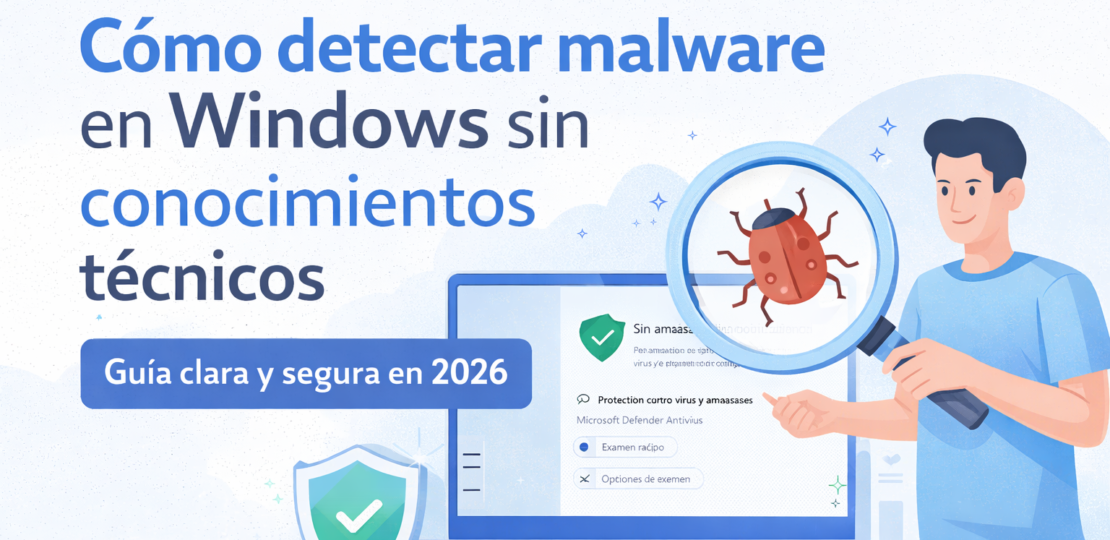
Detecting malware is no longer “expert-only.” With simple signals and tools included in Windows, you can safely check your PC without touching weird settings.
This guide isEvergreen, editorial (no spam) and designed to help you decidewhat to do and what to avoidespecially if you play, you use laptop or a low-end PC.
For who it is
- Competitive players (avoid stutter/lag by rare processes).
- Low-end PC or laptop (look after performance).
- Users who see popups, slowness or “strange things”.
- Who downloads mods/launchers or Internet tools.
Main objective
- Improving thePC securitywithout complicating you.
- Detect malware and annoying software (adware/PUP).
- Reduce abnormal CPU/GPU/RAM consumption.
- Avoid theft of accounts (Steam/Epic/Discord, etc.).
Updated:13/02/2026 • Compatible with Windows 10/11 • Safe focus: no “tricks”, no rare tools.
Índice del Articulo
Before you start: basic concepts (in simple Spanish)
Malwareis a general term for malicious software: viruses, Trojans, spyware, ransomware, miners, etc. Sometimes not “break” your PC: onlyHe's hiding.It steals data or consumes resources.
Key idea:That the PC is slow doesn’t mean malware. But if the slowness appeared “at once” and you also see weird ads or strange processes, it’s worth checking.
What this guide does and does NOT do (total honesty)
What you're going to be able to do
- Detect common threats and unwanted software.
- Review processes, startup and apps installed safely.
- Improve stability if the problem was a malicious process.
- Make decisions without panic or “install anything.”
What it DOESN'T promise
- It does not guarantee to detect 100% of advanced malware.
- It does not replace backups or good practices.
- It is not a magic recipe to upload FPS if your PC is limited.
- It does not recommend dubious or “miraculous” tools.
If after you follow everything you continue with bugs, it can be something else: damaged driver, hard drive with bugs, unstable RAM, high temperatures or a wrongly configured legitimate program.
How to use it correctly (clear and safe steps)
Quick Checklist (minimum recommended)
Step 1) Update Windows and activate protection
- Open up.Settings→Windows Update→ installs updates.
- Open up.Windows Security→Protection against viruses and threats.
- Checks thatReal-time protectionbe active.

Capture:Windows Security (Microsoft Defender) – section to review the status and run analytics.Click on the image to enlarge it.
Step 2) Perform a complete analysis (without fear)
- InWindows SecurityCome on in.Review options.
- ChooseComplete reviewAnd it starts.
- Do not use the PC to play while scanning (to avoid stutter and false “lags”).
Tip gamer:Do the full test when you're not playing. If your PC is slow, it's normal that it takes.
Step 3) Review suspicious processes (without touching the critical)
- Open up.Task Manager(Ctrl + Shift + Esc).
- Order byCPUand then byMemory.
- Warning signs: processes with rare names, without icon, or that consume a lot “at rest”.
Don't do this:you don’t “finish task” things that you don’t understand if the system is stable. First identify: is it a program installed by you? Is it Windows? Is it your GPU?
Step 4) Check installed apps (the most common source of problems)
- Settings →Applications→Installed applications.
- Order byDate of installation(if possible) or review the most recent.
- Uninstall what you don’t recognize, especially “optimizers”, “magic drivers” and browser bars.
Step 5) Clean the browser (adware lives there)
- Check Extensions: Remove those you don't recognize.
- Restore the browser if strange ads appear.
- Avoid installing unknown “blockers” from rare pages.
Step 6) If you found malware: the following (simple and safe)
- Let Windows put it inquarantineor eliminate it.
- Restart the PC.
- Do another quick test.
- If it was a computer with important accounts: change passwords from another device (for security).
Recommended configuration (by scenarios and hardware)
Practical configuration (without complicating)
Keep Windows Defender active, program analytics and use exclusions only where it makes sense (e.g., big game folders).
Simple recommendation:if you don't know what an option is, leave it by default. Windows already comes with a reasonable setup for most.
Expected results (without promising miracles)
If there was malware...
- Less rare CPU/GPU consumption at rest.
- Less popups and browser redirects.
- Better stability (less stutter per process in the background).
- Less risk of account theft.
If there was no malware...
- You may not notice changes (and that's a good sign).
- Your problem can be drivers, temperature or disk.
- Performance should be reviewed with system tools.
Healthy sign:CPU low at rest (e.g. 1–10% on most PCs), quiet fans and zero pop-up windows.
Requirements and compatibility (Windows 10/11)
- Windows 10/11(recommended: updated).
- Microsoft Defender(included in Windows).
- Internet connection for recent definitions.
- Free disk space for analysis (better if you have margin).
Official link: Windows Support (Microsoft)
Useful alternatives (when alternative option is appropriate)
You don’t always need “more” tools. But if you suspect something persistent or want a second opinion, these alternatives are common:
Golden Rule:if a tool asks you to disable security, install “certificates”, or promises you “magic FPS”, distrust.
FAQ: common doubts of those who do not know about the topic (SEO)
How do I know if my PC has malware or is only slow?
If the slowness popped up and you also see popups, browser redirects or high-rest CPU/GPU, it's worth checking. If the PC was always slow, it could be hardware, disk or too many programs at the start.
Can malware cause FPS lakes or basses in games?
Yes. Mining or malicious processes consume CPU/GPU in the background and cause stutter. There is also adware that loads things when you open the browser.
Is it safe to use only Microsoft Defender?
For most home users yes, as long as Windows is up-to-date and do not install dubious site software.
What do I do if the antivirus detects something?
Let me quarantine it, restart and repeat the analysis. If you have important accounts, change passwords from another device.
What signs are immediate “red flag”?
- Defend disabled “only”.
- Browser extensions you didn't install.
- Unknown access to accounts (mail/Steam/Discord).
- CPU/GPU high at rest for no reason.
Is formatting the only solution?
Not always. First try detection and cleaning. Formatting is recommended if the infection persists, there are severe symptoms, or the system became unstable.
Can I get infected by downloading “mods” or game tools?
Yes. The safest thing is to download from known sources, review reviews and avoid installers that include “extras”.
Recommended internal links (related reading)
Editorial Transparency Note + Legal Disclaimer
Editorial transparency:This content is educational and informative. It does not represent sponsorship or commercial agreement. The mentioned brands and names belong to their respective owners.
Disclaimer:security depends on multiple factors (habits, updates, downloads). This guide does not replace professional advice in cases of serious incidents. If you suspect theft of accounts or ransomware, it prioritizes to change passwords and back up data.
Last update: 13/02/2026
RELATED POSTS
View all


Improve your videos with Tipard Video Enhancer: Features, Strong Points and Highlights
enero 6, 2025 | by Equipo YKCG

LastPass Password Manager Premium >=8211; Password Manager
septiembre 14, 2015 | by Equipo YKCG

IObit Uninstaller PRO 15: official free license and activation guide (2026)
mayo 19, 2026 | by Equipo YKCG