

Accelerate Windows 11 without programs: 12 settings that do work (2026)
enero 23, 2026 | by Equipo YKCG
Índice del Articulo
Accelerate Windows 11 without programs: 12 settings that do work (2026)
Windows 11 is a visually attractive operating system, but its elegance is often accompanied by background processes that consume valuable resources. If you feel that your computer has lost the agility of the first day, it is not necessary to resort to third-party software that often ends up slowing down the system more or compromising yourcomputer security.
In this guide updated to 2026, we teach you how to perform deep cleaning and technical optimization using native tools. This method is the safest and most efficient to recover speed on any PC or laptop.
Step by Step Guide: Extreme Optimization
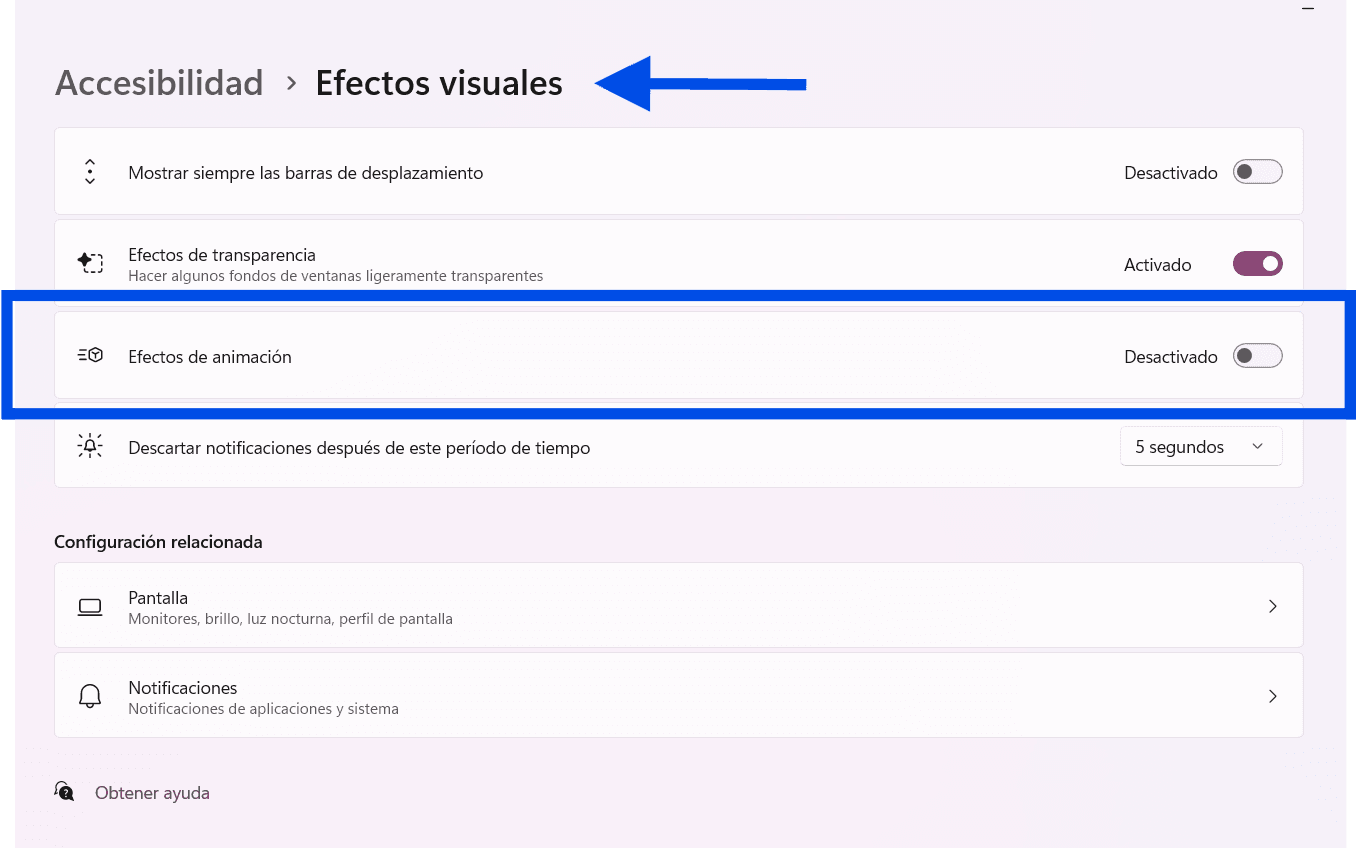
1Disable Visual Effects and Animations
Although shadows and animations are aesthetic, they load the GPU and RAM. To disable them, look for "Fix Windows Appearance and Performance" in the home menu. Select "Finish for Best Performance." You will notice an instant response when opening and closing folders.
2Manage Home Applications
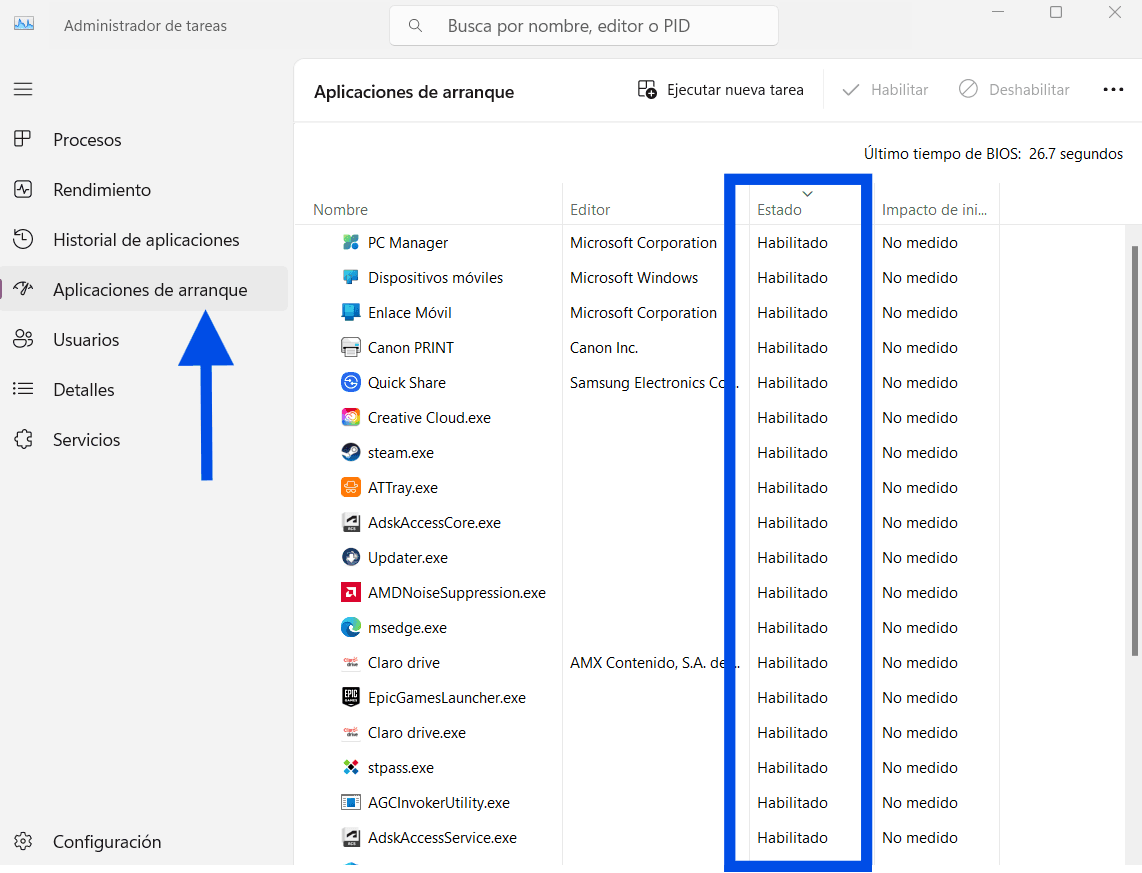
Many programs are configured to open themselves.Ctrl + Shift + Esc, go to the "Start Applications" tab and disable everything that is not essential. This drastically reduces charging time when you turn on the PC. It is a vital part of thePC maintenancepreventive measures.
3Enable Storage Sensor
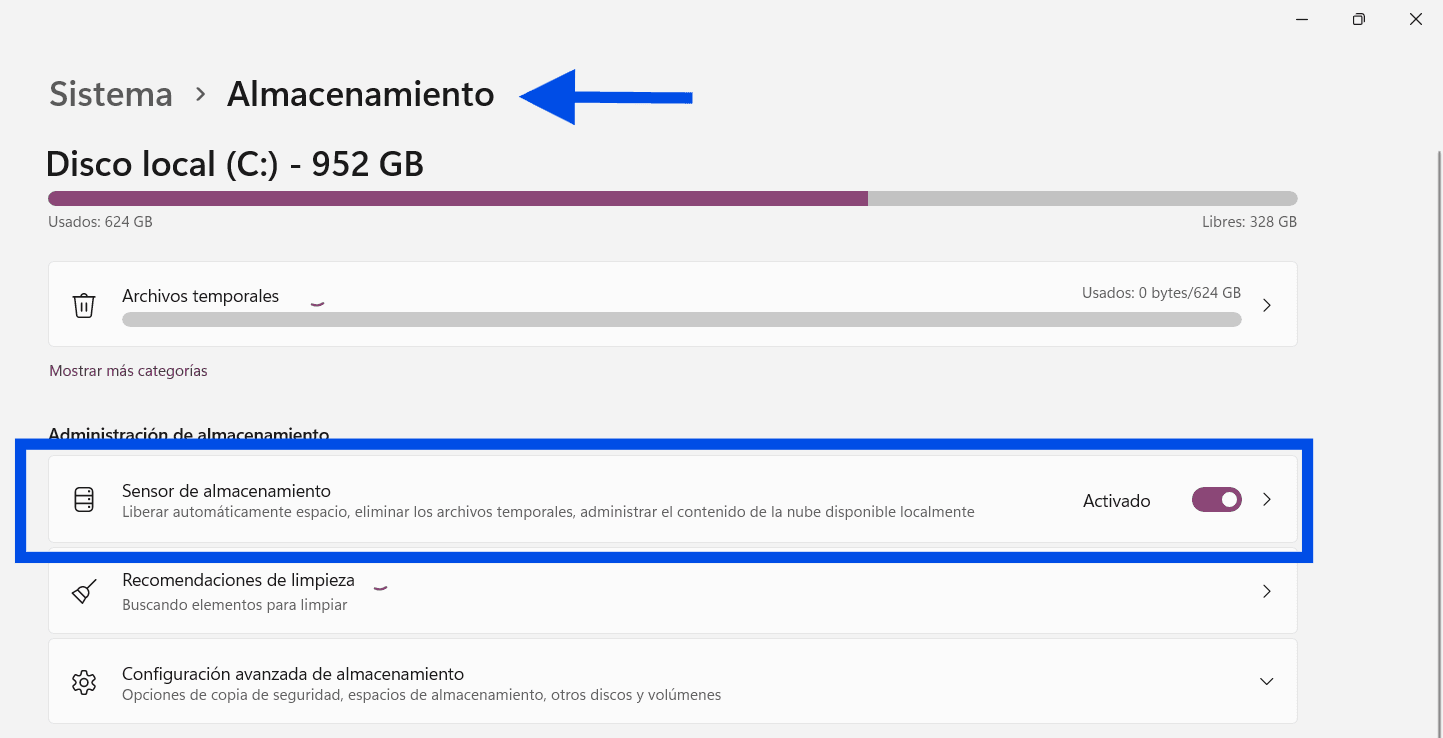
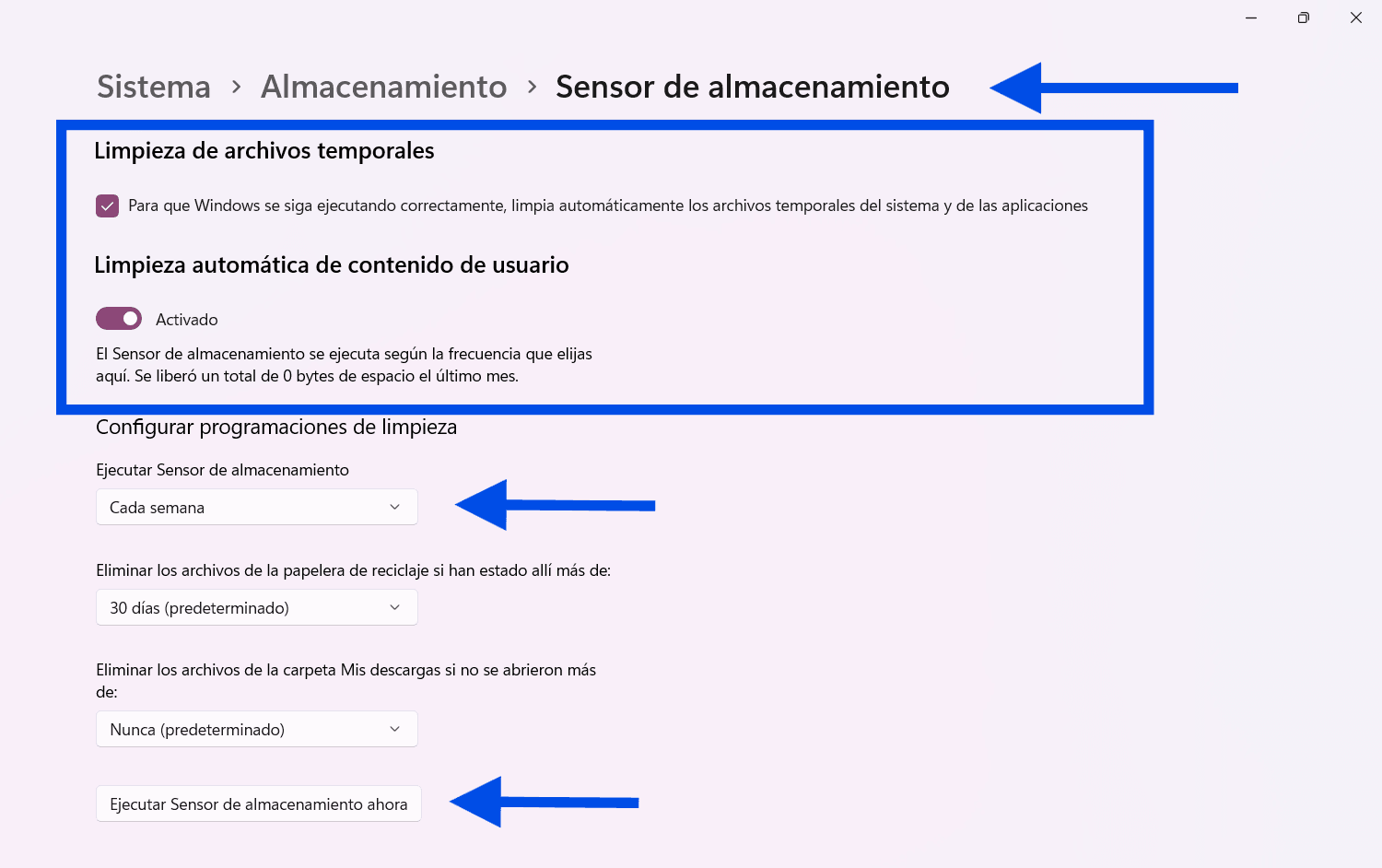
Windows can self-clean. Go toConfiguration > System > Storageand activate the "Storage Sensor." This will automatically delete temporary files and trash every week, keeping your disk free of unnecessary waste.
4Maximum Performance Energy Plan
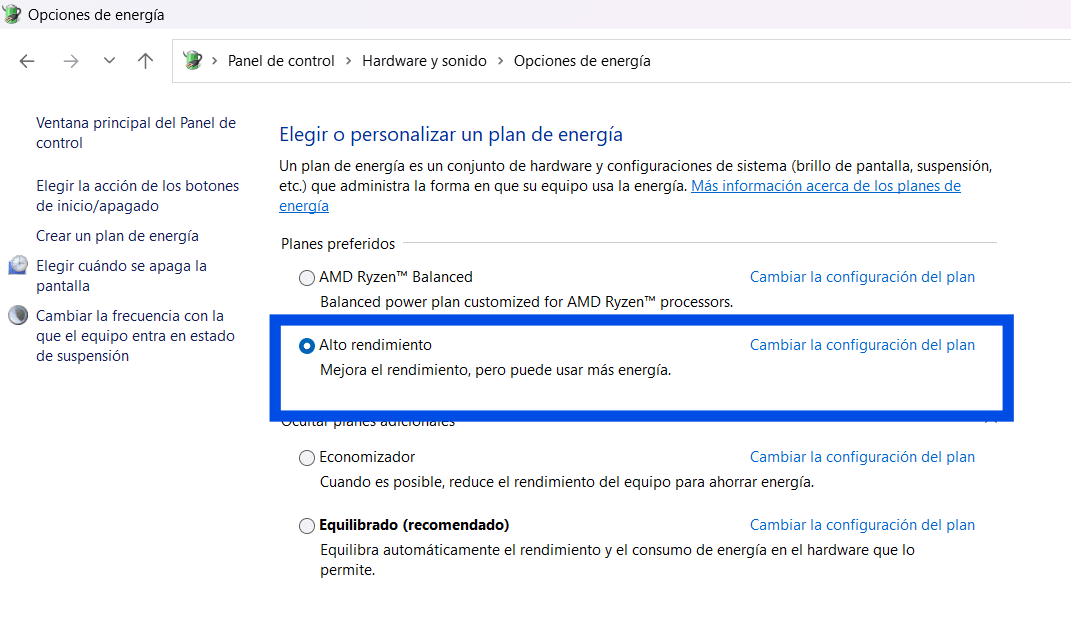
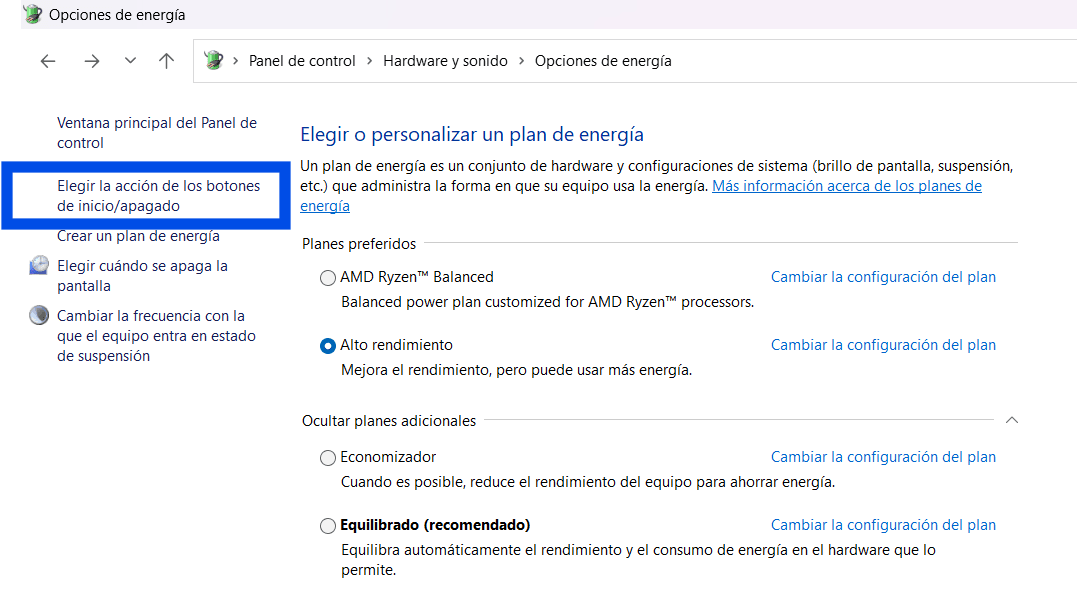
By default, Windows uses a balanced plan. Go to Control Panel > Hardware and Sound > Power Options. If you don't see "High Performance", you can create it so that the processor works at its maximum frequency when needed.
5Disabling Transparency
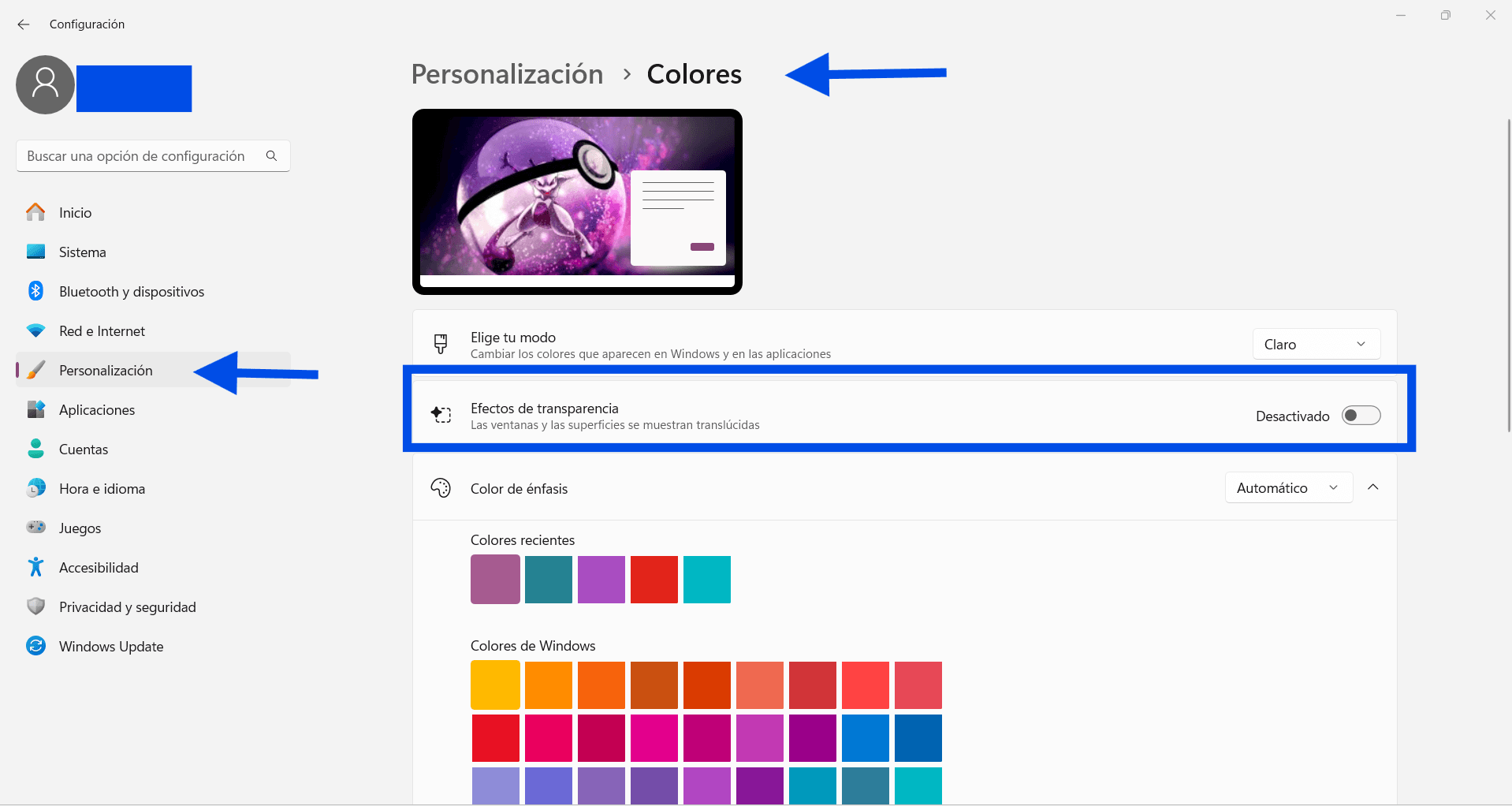
The "Mica" effect and window transparencies consume clock cycles from your graphics card. Go toSettings > Customization > Colorsand disables "Transparency Effects." The interface will be stronger and faster.
6Optimize Notifications and Suggestions
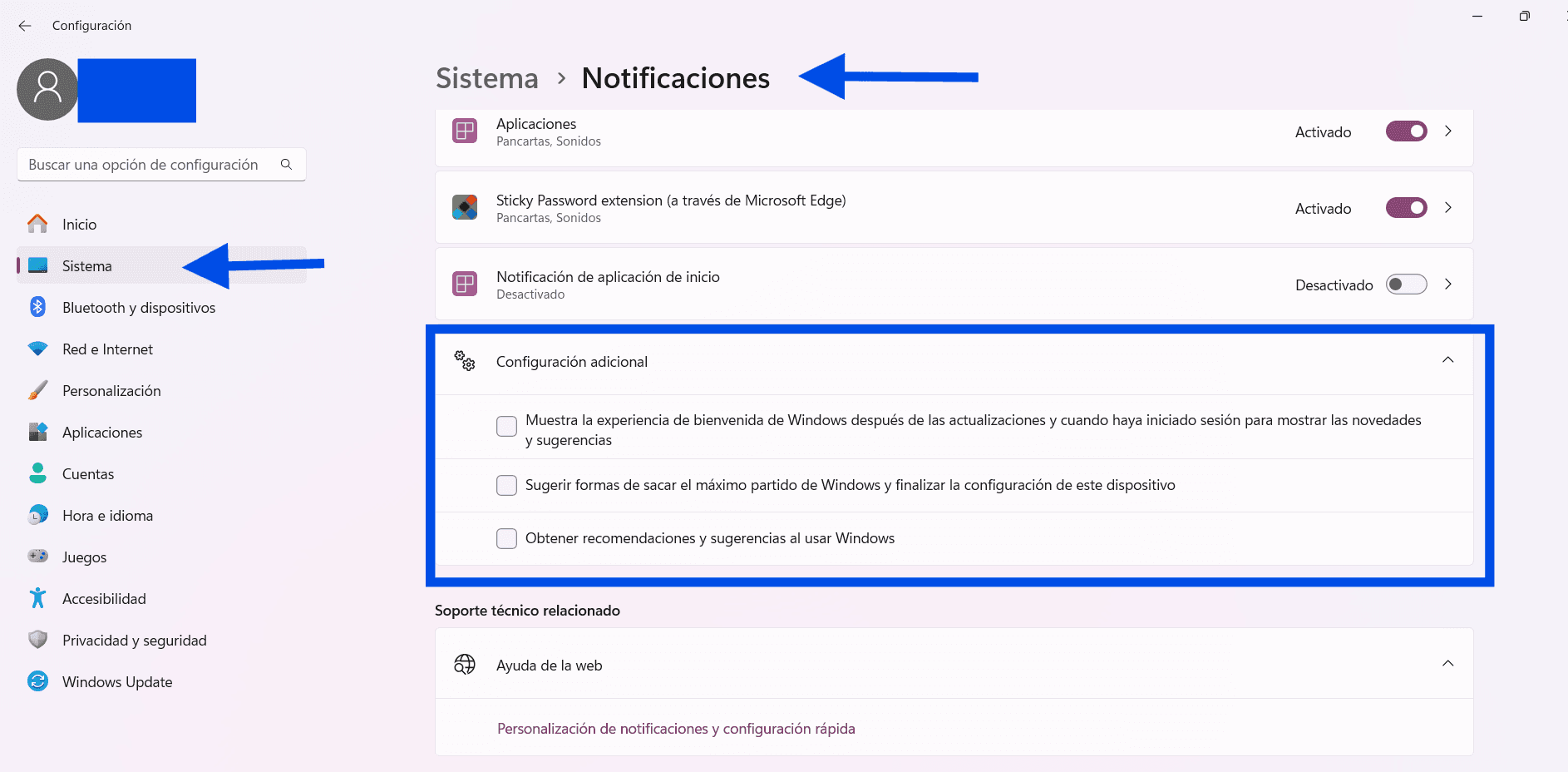
Windows 11 usually sends "suggestions" that are basically internal advertising. Go toConfiguration > System > Notificationsand turn off the options below on "configurative suggestions" and "Windows tips." Less processes, more speed.
7Game Mode (Even if you don't play)
The Game Mode prioritizes active processes against Windows updates in the background. Find it in the settings and make sure it is enabled so that the system concentrates its power on the application you have open at that time.
8Control of Applications in Second Plane
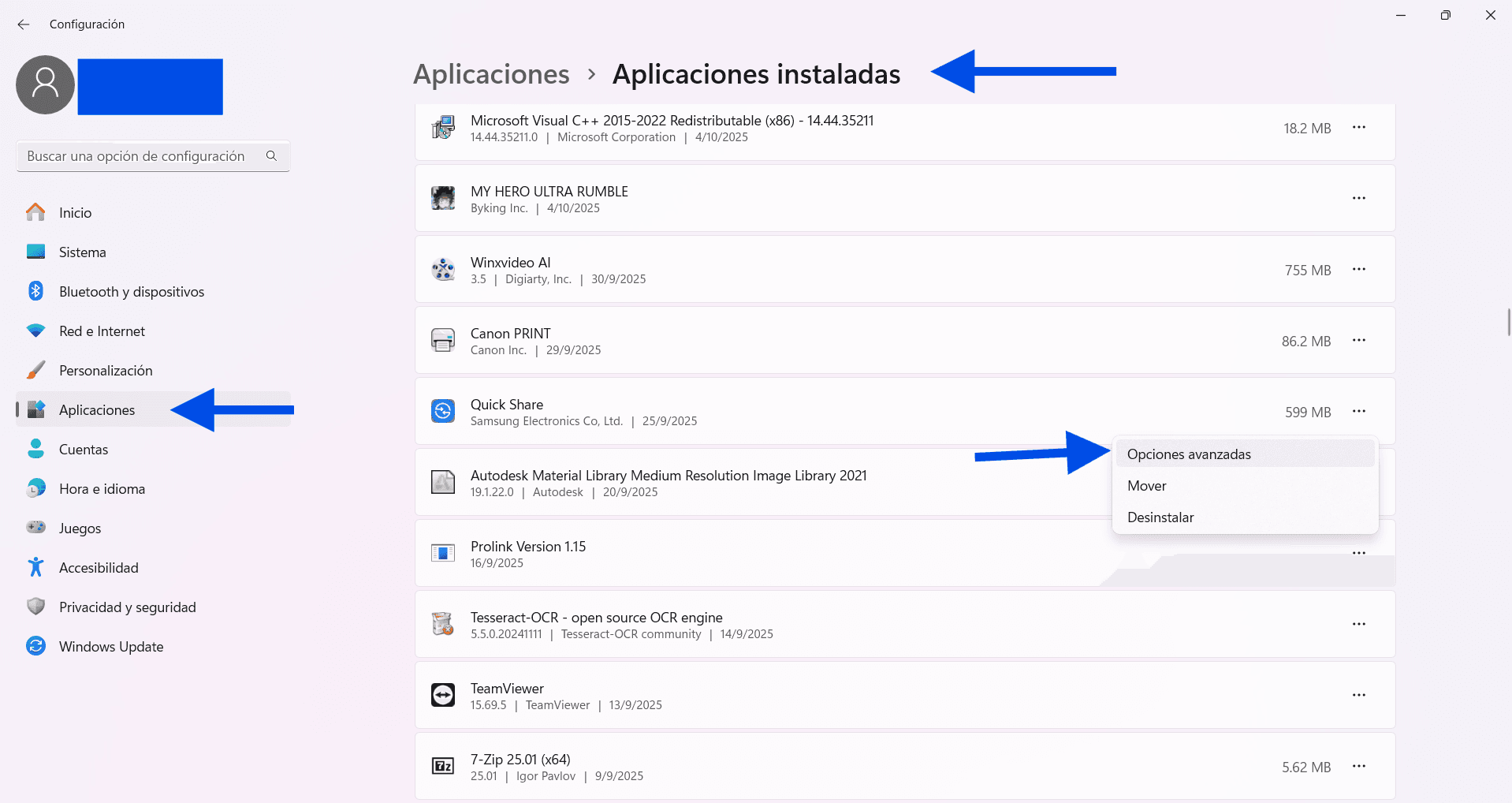
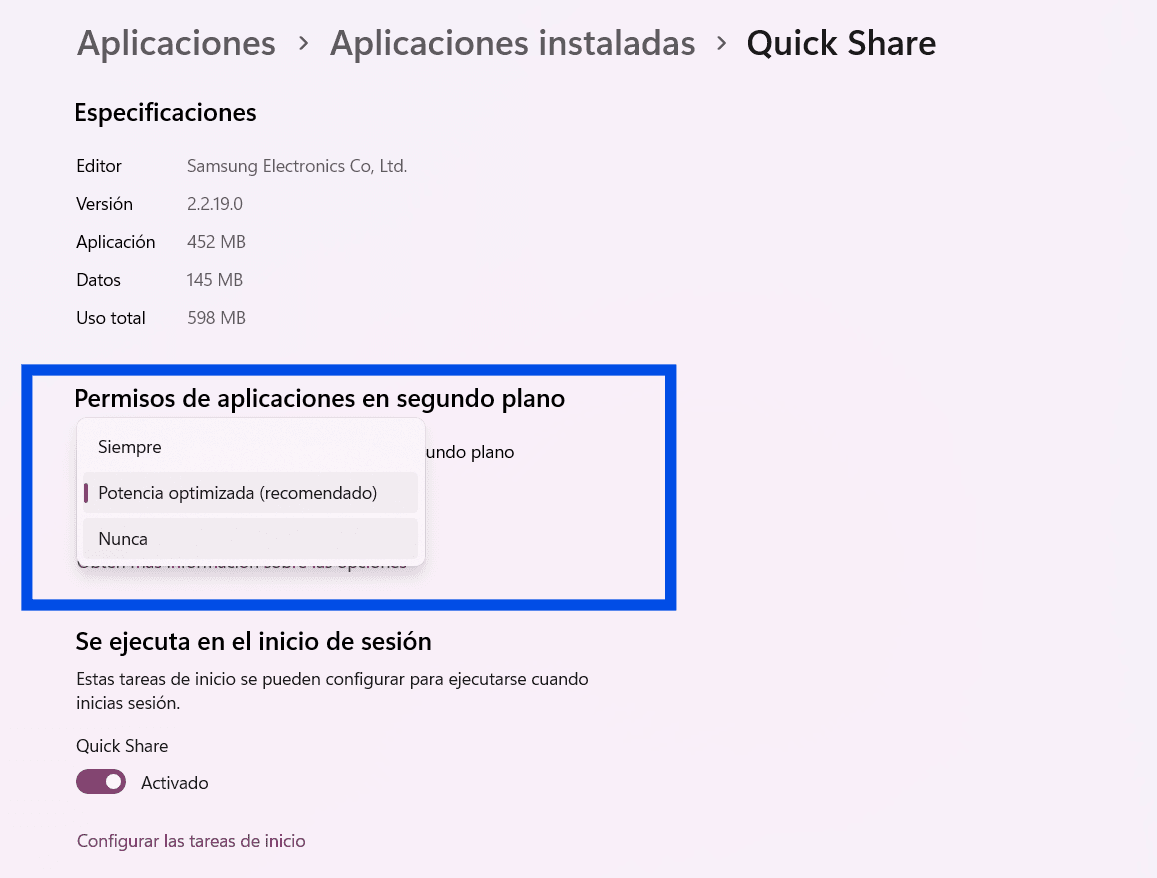
In Windows 11, you must go toSettings > Applications > Installed applications. Click on the three app points like Spotify or Cortana, select "Advanced Options" and change permission from "Background Applications" to "Never." It is tedious but highly effective.
9Search Reindexation
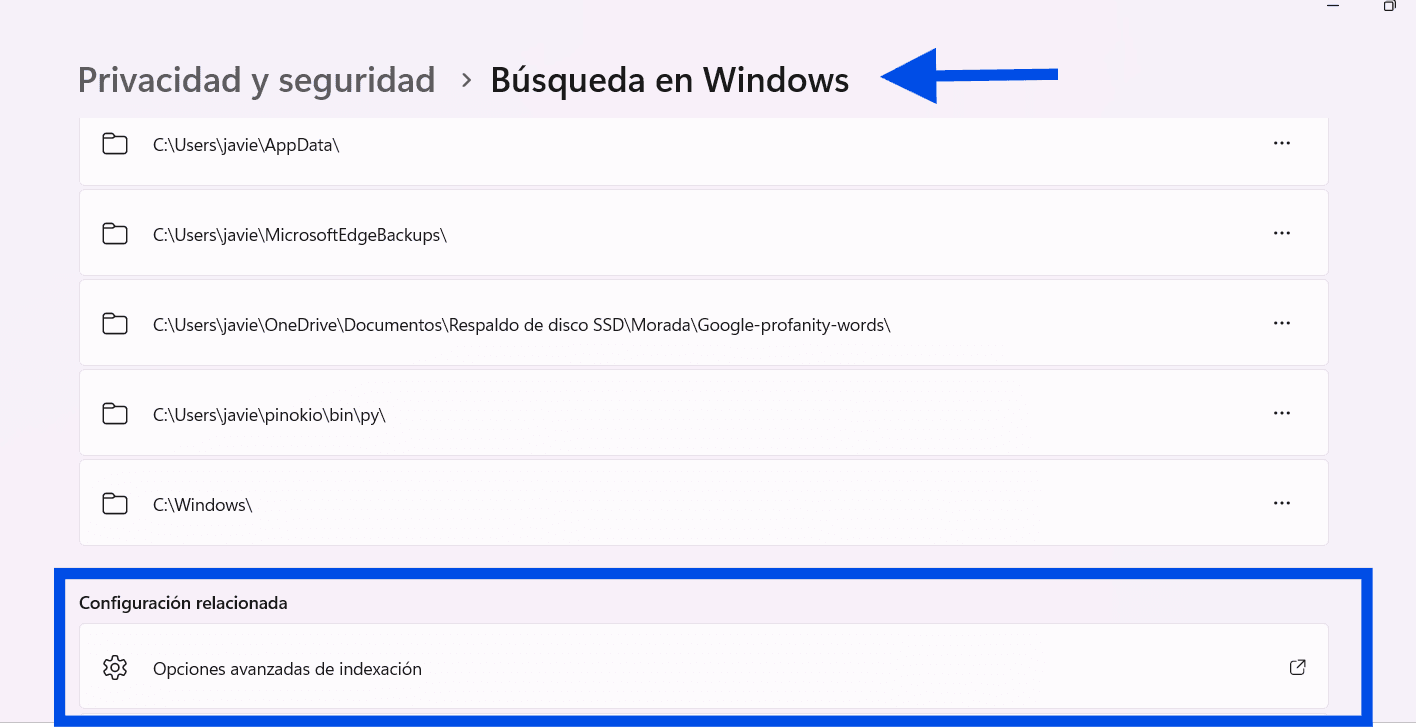
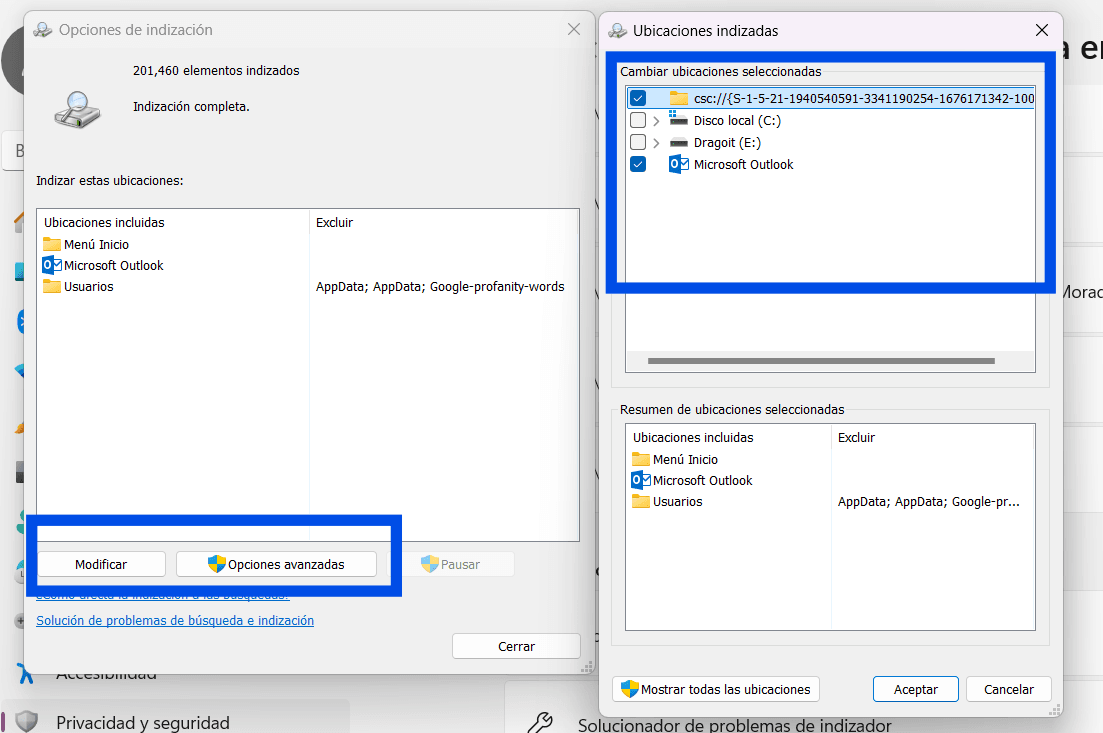
If your disk is always 100%, indexing could be the cause. You can limit which Windows index folders so that it is not constantly analyzing files. Enter file indexing and select what you want to be indexed and what not..
10Manual Temporary File Cleaning
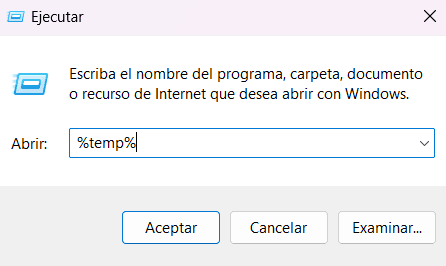
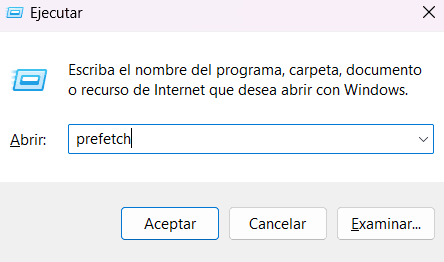
PressWin + R, writetempand deletes everything. Repeat the writing process%temp%And thenprefetch. Folders will be opened for each respective command; it removes the contents of them. This forces the system to get rid of corrupt cache that automatic cleaners sometimes ignore.file cleaningmanual never fails.
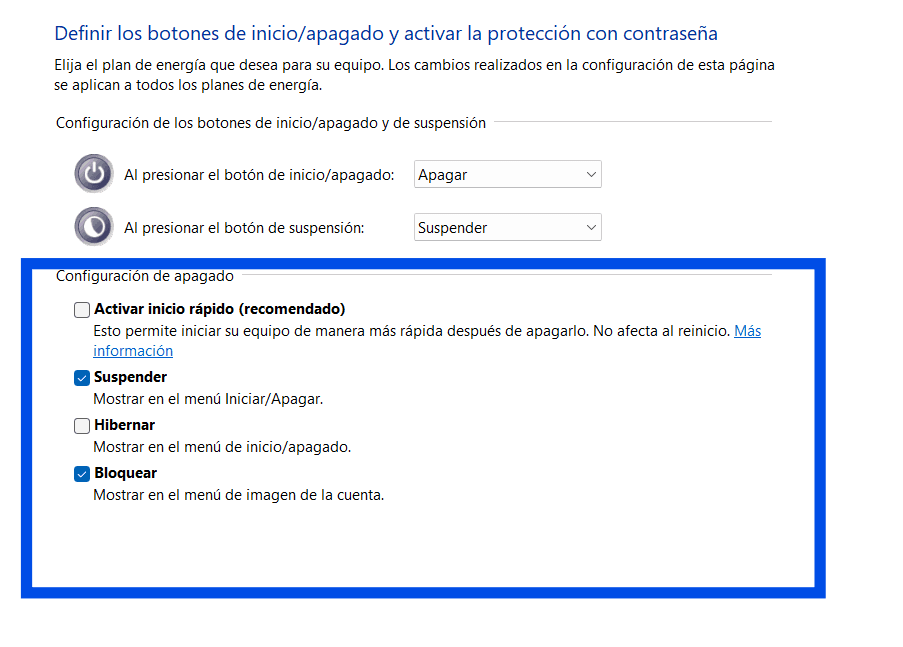
11Disable Quick Start (If you have SSD)
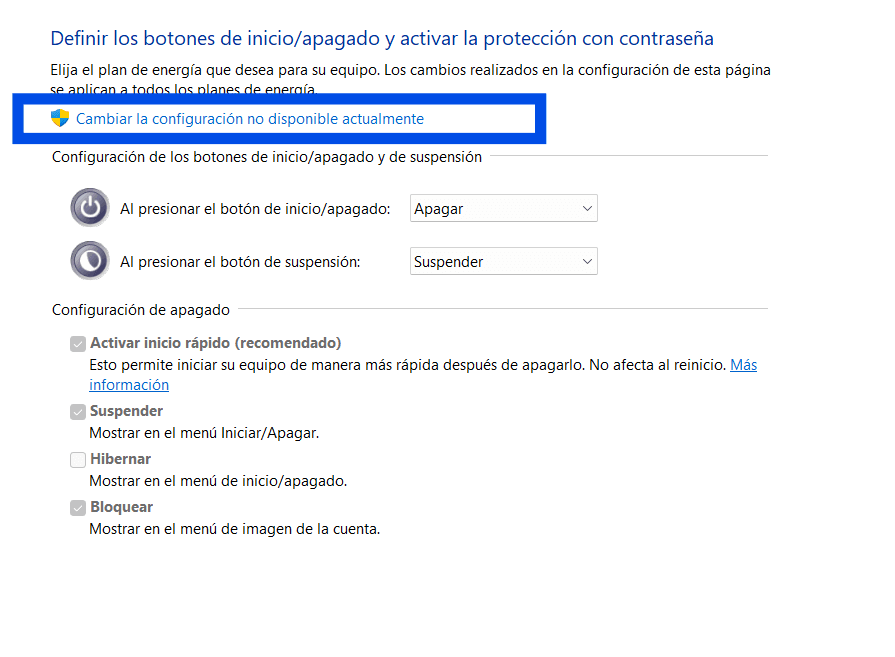
Although it seems contradictory, the "Quick Start" sometimes causes kernel problems that slow down the system in the long term. If you have a modern SSD disk, disable it in the power options to ensure that each boot is clean and from scratch.
12Virtual Memory Settings
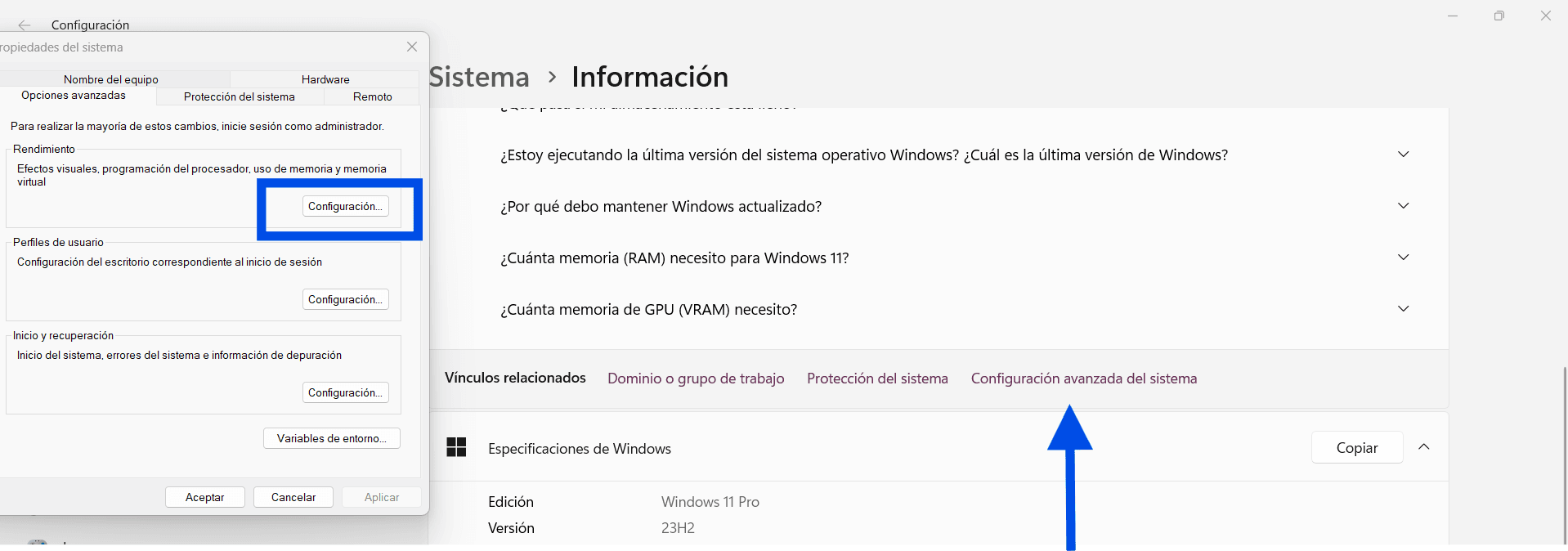
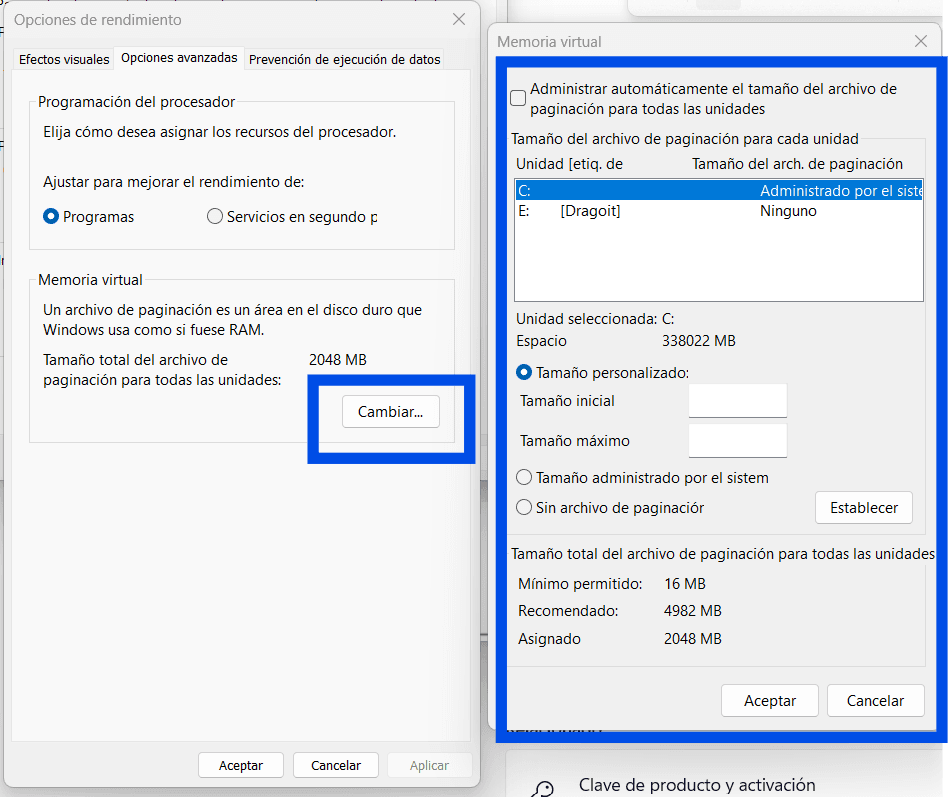
If you have little RAM (8GB or less), manually set up the pagination file on your disk faster can avoid system crashing. It is an advanced technical setting that gives a second air to old computers.
Frequently Asked Questions (FAQ)
Do these changes damage my warranty?
No. All settings are made within the official Microsoft options. Hardware is not altered and unauthorized software is not used.
Do you really notice the difference in a powerful PC?
Even in high-end PCs, reducing the latency of animations and background processes improves the tactile response and fluidity of professional workflow.
Do I have to repeat these steps after upgrading Windows?
Generally not, although large version updates (such as from 23H2 to 24H2) sometimes restore visual effects. Step 1 and 2 should be reviewed every six months.
RELATED POSTS
View all


Drivermax 15 Pro Helps You Have an Updated PC
noviembre 8, 2023 | by Equipo YKCG

AOMEI Backup Pro 6.4: Backup Software
marzo 15, 2021 | by Equipo YKCG