

Batch Picture Resizer: Resize batch images on Windows (free license)
febrero 6, 2026 | by Equipo YKCG

Índice del Articulo
Batch Picture Resizer: Resizes and converts batch images on Windows (free license)
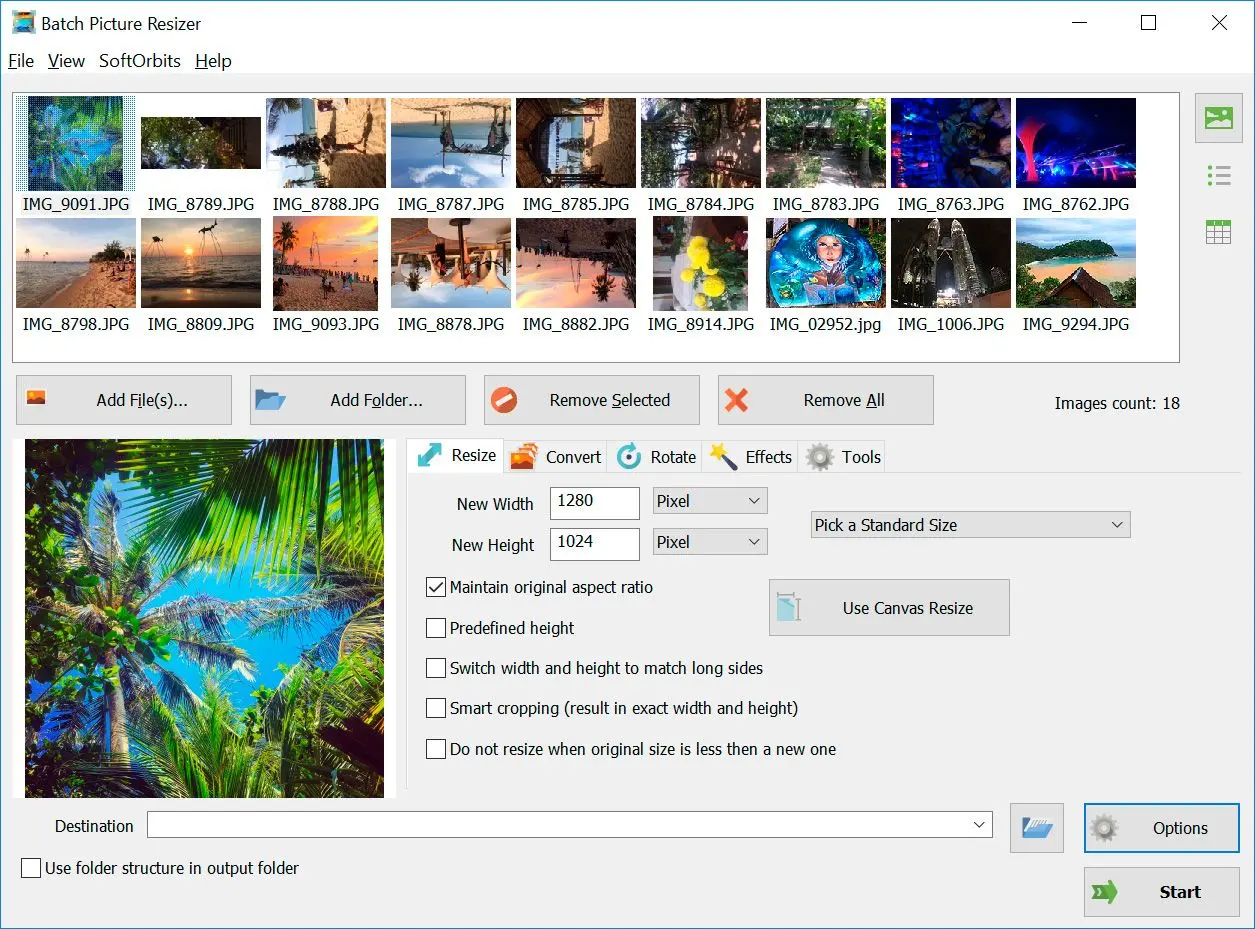
Batch Picture Resizeris a tool focused on a very concrete need:process many images at once(change size, crop, convert formats, rotate, rename, compress and apply basic settings) without having to open them one by one. It is the type of software that becomes useful when you work with complete folders: cellular photos, e-commerce catalogs, web images, or batches that you need to adapt to a standard size.
The idea is simple: you define an output “profile” (size, format, quality, destination, renamed) and the program applies the same rule to the lot. So you reduce errors and gain consistency, which is what really matters when the volume goes up. If you are also interested in related tools (e.g. basic editing or removal of funds), on ykcg.info you have contents that fit well:SoftOrbits Photo Editor,Photo Background RemoverandSketch Drawer.
What it really serves (typical cases of use)
Batch Picture Resizer does not try to replace a professional editor; its strong point is therepeatable work. If your task is summarized in “I have 200/500/2000 images and all should be left with these rules”, this approach is correct.
Key functions (which brings more value)
In batch software, the important thing is not to “have many options”, but to have the right options work consistently. Here are the functions that usually make the difference in real use:
- Batch resizing:per pixels, percentage or standard sizes, maintaining proportions when needed.
- Batch cutting:useful when you require a uniform frame (miniatures, product tokens, catalogues).
- Format conversion:switch from PNG/JPG/TIFF/BMP and others to a consistent final format for web or file.
- Compression:lose weight (MB) without destroying excess quality, especially in JPEG.
- Automatic rotation:rotate without losing quality using EXIF metadata (very common in cell/camera photos).
- Renamed massive:prefixes/suffixes, numbering or date to sort large collections without chaos.
- Quick adjustments:simple color correction/contrast or basic effects when you only need to “fix” without editing in detail.


Quick practical guide (recommended flow)
To avoid inconsistent results, always follow the same order:load → set output → preview → run. In large batches, a configuration error is multiplied by 200 or 2000 files, so it is worth validating first with 5–10 images.
- Adds folder(not just loose files) if your collection is organized.
- Choose the mode: Resize / Crop / Convert / Rotate (according to your target).
- Defines destination: new folder (recommended) or replace originals (only if you have backup).
- Set up quality(if you export to JPEG) and the final format.
- Do a test with few imagesand check the final result.
- Run the whole lot.When you've already validated the profile.

Promotion: How to get a free license
If you are taking advantage of the promotion, the process is typical of “free key”: you register an email, complete the form and receive your key. The official link of the promotion is as follows:
Open the form in Spanish to generate your key.
Terms and conditions (in Spanish)
- The license obtained isfor life(lifetime).
- Does not includefree updates.
- Does not includefree technical support.
- You must.register/activate before the end of the promotion.
Official link of output and resources
For official product characteristics, catches and information:Batch Picture Resizer (official site).
Recommended readings on ykcg.info
Conclusion
Batch Picture Resizer highlights when the problem is not “editing a photo”, butstandardize manywithout wasting time. If you work with complete folders, you need to reduce web weight or convert formats constantly, this type of tool is usually more efficient than a traditional editor for repetitive tasks.
RELATED POSTS
View all


AnyVid for Windows – Free download with 1 year official license
noviembre 11, 2025 | by Equipo YKCG

Explore EaseUS Partition Master Professional: The Definitive Partition Management Tool
agosto 11, 2025 | by Equipo YKCG
